
Most Etsy sellers create products they hope will sell. The result is wasted hours designing listings that get no traction — not because the execution was bad, but because nobody was searching for that product in the first place.
This guide breaks down the two demand signals that separate winning products from dead listings — Add to Carts and recent sales velocity — and how ProfitTree surfaces both automatically, so you can validate any product idea in minutes instead of hunting for signals manually across Etsy.

Why Most Etsy Sellers Pick the Wrong Products
The default approach for most new sellers is intuition-based: create something that feels popular, list it, and see what happens. The problem is that Etsy's marketplace has over 100 million listings. A product that feels obvious to you has almost certainly been listed before — and whether it's selling comes down to data, not instinct.
The sellers who consistently find winning products before their competitors do use two specific signals: historical demand (has this product sold consistently over time?) and real-time demand (are buyers actively interested in this right now?). Knowing how to read both signals — and where to find them quickly — is the difference between a catalogue built on guesswork and one built on evidence.
How do I know if a product idea has real demand on Etsy?
Look for two signals on competing listings: the Add to Carts count (how many shoppers have recently added similar items to their cart) and recent sales velocity (how many units sold in the past 24 hours or monthly). If both signals are strong across multiple competing listings, the market is validated. ProfitTree's Product Finder and Etsy Radar surface both signals automatically for any keyword or niche.
Two Ways ProfitTree Shows You Demand: Product Finder and Etsy Radar
ProfitTree gives you demand data in two places depending on how you prefer to work — inside the web app, or directly while browsing Etsy.
Web App --> Product Finder
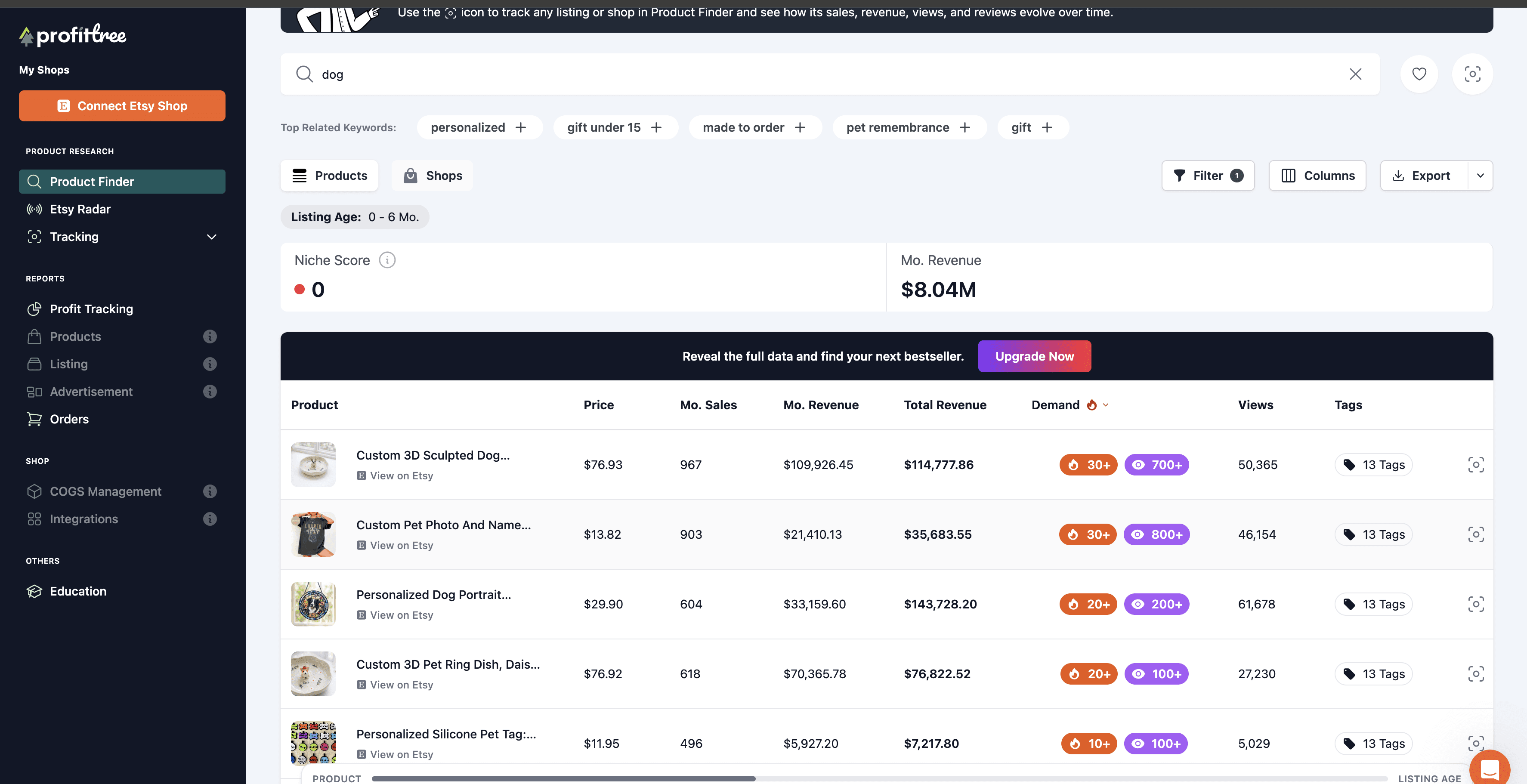
Search any keyword or niche and instantly see demand indicators, monthly sales, revenue, pricing, views, and tags for every competing listing — all in one sortable table. Best for research sessions where you're exploring a new niche from scratch.
Chrome Extension —> Etsy Radar
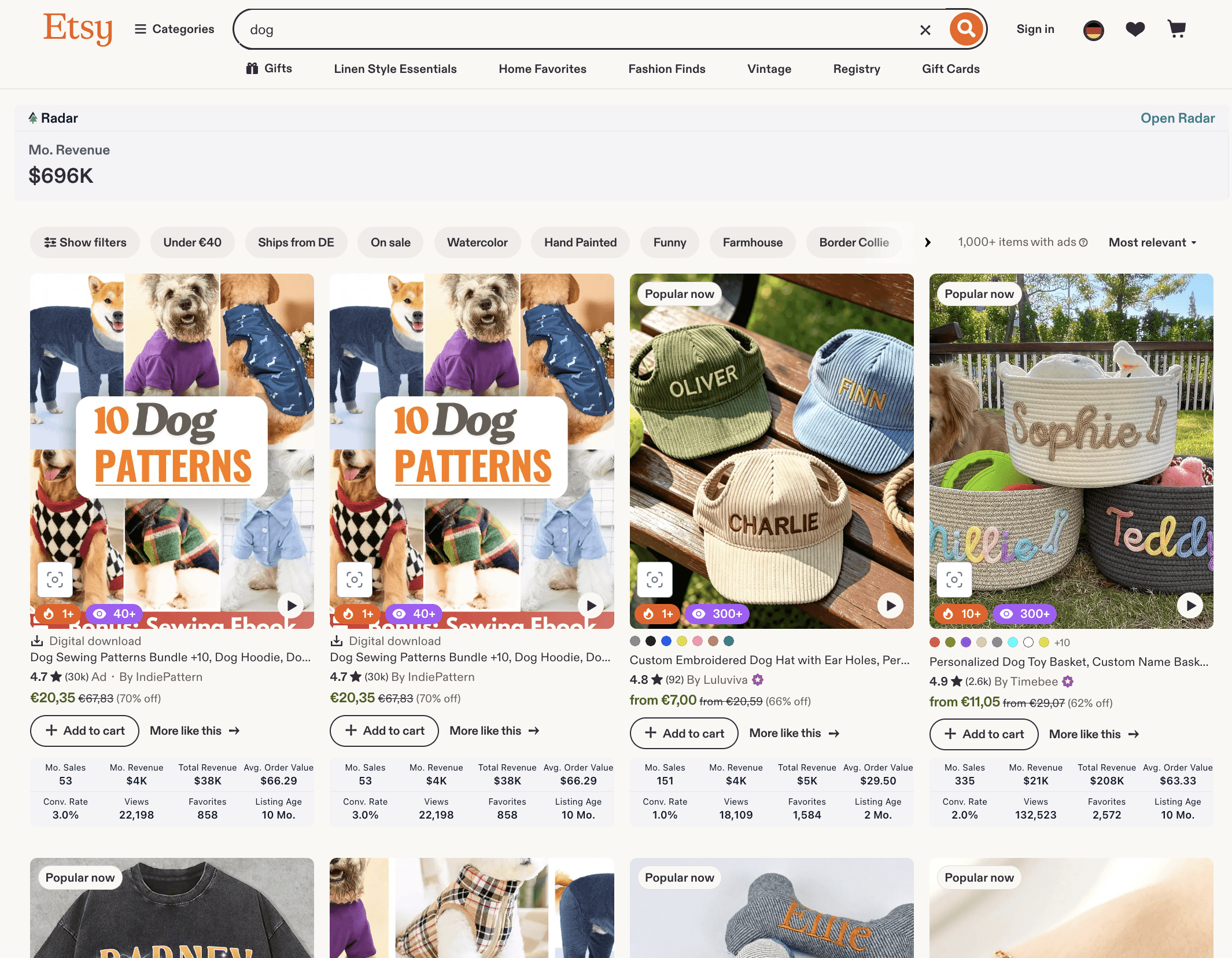
Adds a live data panel directly to any Etsy listing page while you browse. Shows monthly sales, revenue, visibility score, conversion rate, and estimated demand without leaving Etsy. Best for quick validation while you're already shopping or researching.
Both tools show the same core demand signals — the difference is where you access them. Use Product Finder when you're doing focused research. Use Etsy Radar when you spot something interesting while browsing and want instant data without switching tabs.
The Two Demand Signals That Actually Matter
ProfitTree's demand indicators are built around two badges that reflect real buyer behaviour — not estimates or algorithmic scores. Here's what each one means and why it matters.
🛒 Add to Carts — real-time buyer interest
The fire badge shows how many shoppers have recently added a listing to their cart. This is a real-time demand signal — it reflects active buying intent right now, not historical sales from months ago. A high Add to Carts count means buyers are currently interested in this product type, which makes it one of the strongest short-term validation signals available.
🛒 30+Very high current demand
🛒 20+Strong demand — solid validation signal
🛒 10+Moderate demand — worth monitoring
🔥 Sold in the Last 24 Hours — what is actually selling now
🔥 7+Exceptional
🔥 20+Make the product today
🔥 100+Viral Product
How to Use Product Finder to Validate Any Niche
Product Finder is inside the ProfitTree web app under Product Research. Search any keyword and it returns every competing listing in that niche with full demand data — so you can see in seconds whether a niche is worth entering before you create a single product.
Step by step
Open ProfitTree and go to Product Finder in the left sidebar.
Type your target keyword into the search bar. Example:"dog","funny teacher shirt","wedding digital download". Product Finder will also surfaceTop Related Keywords at the top — these are the actual search terms buyers use in that niche.
Check the Niche Score and Monthly Revenue t the top of the results. This tells you at a glance how competitive the niche is and how much money is flowing through it each month.
Scan the Demand column— look for listings showing 🔥 20+ or higher on Add to Carts and 👁 200+ or higher on views. Multiple listings with these signals confirm the niche has active buyers right now.
Check Mo. Sales and Mo. Revenue per listing to understand typical earnings. A listing doing 600+ monthly sales at $29 with 🔥 20+ demand is a clear signal the product concept is proven.
Click View Tags on any listing to see the exact keywords that listing ranks for — these go directly into your own listing titles, tags, and descriptions.
Use the Filter and Columns options to narrow by listing age, price range, or other variables. Filter byListing Age: 0–6 months to find newer listings with strong demand — these show what's working right now, not two years ago.
What does the Niche Score in Product Finder mean?
The Niche Score reflects how competitive a keyword is based on the volume and strength of existing listings. A lower score means less competition — which can be an opportunity, especially if monthly revenue in that niche is still strong. A high score doesn't mean you can't enter the niche, but it does mean you'll need a stronger listing optimization strategy to cut through.
How to Use Etsy Radar While Browsing Etsy
Etsy Radar is the ProfitTree Chrome extension. Once installed, it adds a live data panel to the bottom of any Etsy listing page you visit — so you get full demand and performance data on any listing without leaving Etsy or switching to another tab.
What Etsy Radar shows you per listing
Data point | What it tells you |
|---|---|
Mo. Sales | How many units the listing sells per month — core demand indicator |
Mo. Revenue | Monthly revenue generated by this single listing |
Total Revenue | Lifetime revenue — shows long-term staying power of the product |
Views | Total listing views — indicates search visibility and click-through |
Conv. Rate | What percentage of viewers buy — high conv. rate = strong listing copy and product fit |
Visibility Score | How well the listing ranks in Etsy search (scored out of 100) |
Avg. Order Value | Average spend per transaction — useful for understanding bundle and upsell potential |
Est. Demand | 🔥 Add to Carts + 👁 Recent views — real-time buyer interest signals |
Listing Age | How long the listing has been live — useful for spotting newer listings with fast traction |
Favorites | Total saves — a secondary interest signal alongside Add to Carts |
Tags | View all tags the listing uses — pull these directly into your own listings |
How to use it in practice
Browse Etsy normally and search your target keyword. When a listing catches your eye, open it — Etsy Radar's panel loads automatically at the bottom.
Check Est. Demand first. 🔥 20+ and 👁 200+ together is a strong signal the listing is actively converting right now.
Cross-reference with Mo. Sales and Conv. Rate. A listing with high views but low conv. rate suggests the product has search visibility but something in the listing copy or images isn't converting — an opportunity to do it better.
Click View Tags to see every keyword the listing ranks for. These are your competitor's SEO blueprint — use the most relevant ones in your own listing.
What to Do When You Find No Demand Signals
Sometimes a keyword search in Product Finder returns listings with no demand badges — no 🔥, no 👁, flat monthly sales. Before drawing conclusions, it helps to know which of two situations you're actually in.
🚩 Red Flag — No Market
No competing listings have demand signals because nobody is searching for this product. This is the most common outcome for niche-within-a-niche ideas that feel clever but have no buyer base. Don't create for a market that doesn't exist yet.
✓ Opportunity — Untapped Gap
Related products show strong demand signals, but your specific angle hasn't been listed yet. Example: the "dog" niche shows 🔥 30+ on multiple listings, but your specific breed + product combo is missing. That's a validated gap worth testing.
How do I tell the difference between no demand and an untapped opportunity?
In Product Finder, search a broader version of your keyword first. If the broader niche (e.g. "dog gifts") shows strong demand signals across multiple listings, but your specific idea (e.g. "Dachshund birthday bandana") isn't listed, that's an opportunity. If even the broader niche has flat demand data, there's likely no meaningful buyer base for any version of the idea.
Validate the Opportunity in Your Own Shop Too
Product Finder and Etsy Radar show you what's working across the marketplace. But some of your best product expansion opportunities are already hiding inside your own shop — you just can't see them without profit data.
ProfitTree's Profit Tracking sorts your existing listings by true profit — after Etsy fees, ad spend, and Printify or Printful production costs are factored in. A listing generating 100 sales at $8 profit each is worth far more than one doing 200 sales at $1.50 profit. Most sellers can't see that distinction from their Etsy dashboard alone.
Once you know which listings are your highest profit earners, the Product Finder data gives you a clear expansion path. If a Labrador hoodie is your top profit earner, search "dog hoodie" in Product Finder and check demand signals for Golden Retrievers, French Bulldogs, and Dachshunds. You already know the concept converts — Product Finder tells you which variations have the strongest current demand to create next.
Quick Recap
UseProduct Finderin the ProfitTree web app to search any niche and see demand signals, monthly sales, revenue, and tags for every competing listing before you create anything.
Use Etsy Radar (Chrome extension) to get live demand data on any listing while you browse Etsy — no tab switching required.
Look for 🔥 20+ Add to Carts and 👁 200+ views together — both signals strong means the product is both discoverable and converting right now.
No demand badges on a broad keyword search = no market. No badges on your specific idea but strong signals on the broader niche = potential gap worth testing.
Use Profit Tracking to find your highest-margin existing listings, then use Product Finder to identify the best demand-backed variations to expand into next.
Conclusion: Validate First, Create Second
The sellers who build profitable Etsy shops aren't guessing what to create next — they're reading demand signals before they invest a single hour in a new product. Add to Carts shows you what buyers are interested in right now. Sales velocity shows you what's consistently converting. Combined, they give you a clear picture of whether a niche is worth entering.
ProfitTree puts both signals in front of you automatically — in the Product Finder when you're researching a new niche, and in Etsy Radar when you're browsing. Stop building on guesswork. Start building on data.
Find your next best-selling product today
ProfitTree's Product Finder and Etsy Radar show you real demand data — Add to Carts, sales velocity, revenue, and tags — for any niche on Etsy. Free to try for 7 days.

